VSCode window Frenzy: I let Copilot fix my multi-window Chaos in 15 min
I have a bad habit. I open too many VS Code windows at the same time.
On a typical morning, I have a couple of projects opened, plus one or two random windows from old tasks I forgot to close. Sometimes six windows at once.
The problem is they all look exactly the same.
Same font. Same theme. Same layout. The only difference is the tiny text in the title bar that says the project name. And if you are like me, your taskbar is too crowded to read that tiny text without hovering over each window one by one.
So I kept clicking the wrong window. I kept typing in the wrong file. I kept wasting five to ten seconds every time I needed to switch context. It sounds small. But when you do it fifty times a day, it adds up. More importantly, it breaks your focus every single time.
The moment I decided to just fix it
One afternoon, I switched to the wrong window for the fourth time in an hour and I thought, okay, this is stupid. There must be a better way.
My first thought was to search for a VS Code extension that colors the status bar per workspace. I found a few, but none of them worked exactly the way I wanted. Some required too much manual setup. Some had more features than I needed. Some had not been updated in years.
So I did the thing I keep telling myself to do more: I just built it myself.
And I gave the job to GitHub Copilot.
Fifteen minutes, one extension
I opened a new terminal, asked Copilot to scaffold a basic VS Code extension, and started describing what I wanted.
I wanted the status bar at the bottom of the window to automatically pick a color based on the workspace. Not random, but consistent. Same workspace should always get the same color. And I wanted the workspace name displayed clearly in the status bar, big enough to read without squinting.
Copilot wrote most of the code. I mostly reviewed it, adjusted a few things, and tested it. The core logic was done in under fifteen minutes.
I called it VSCode Frenzy.
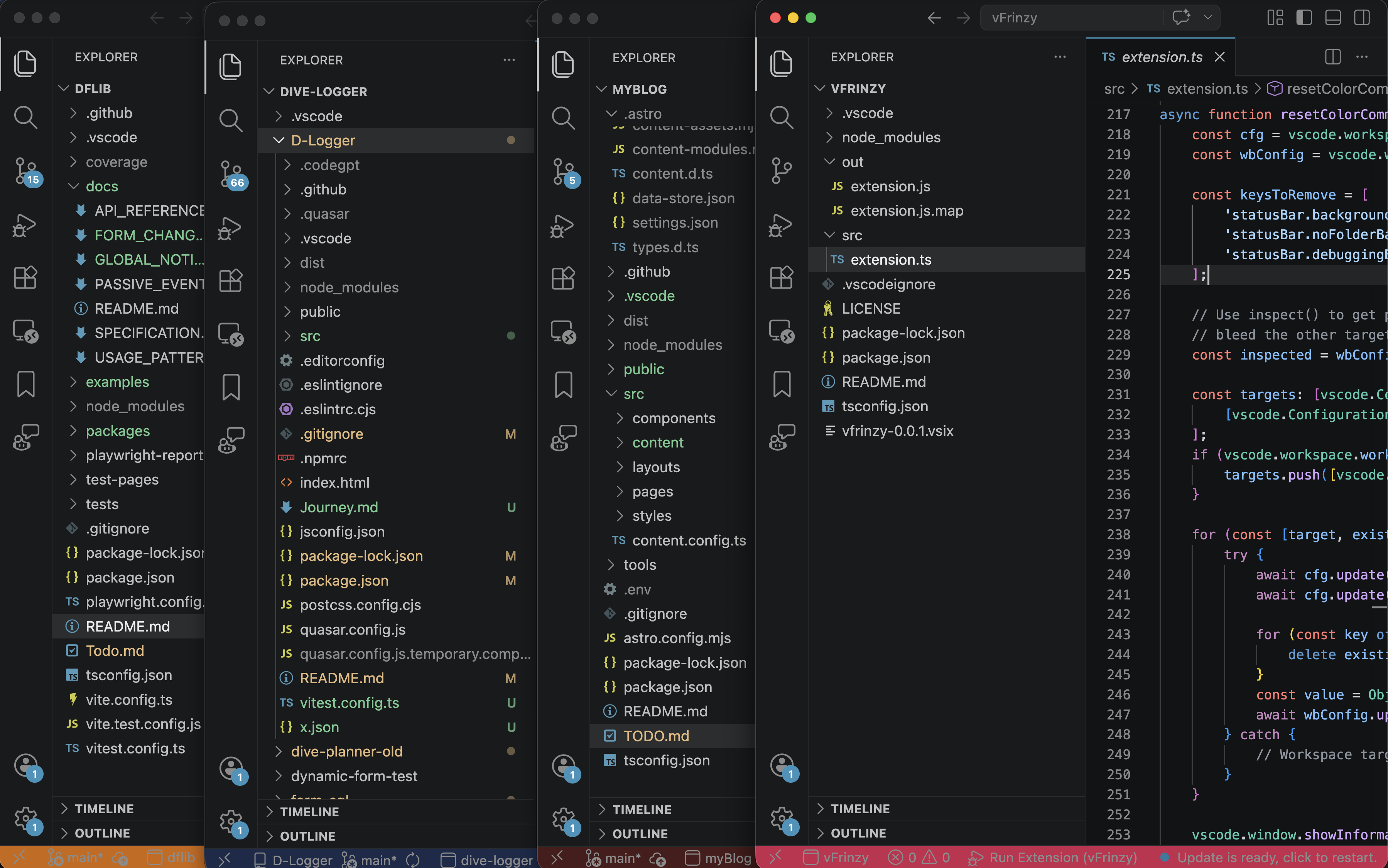
This is how it looks in real life, a couple of projects open, each window easy to identify at a glance.
What the extension actually does
The logic is simple on purpose.
When you open a workspace, the extension reads the workspace folder name. You can simply click the workspace name on the bottom and customize status bar color, font color, some patterns on name and icon. this will be saved in per workspace
Then it creates a status bar item and puts the workspace name there, colored to match. Y
That is it. No configuration needed. No settings to manage. You install it, open your workspaces, and each window immediately has a unique identity.
How it changed my daily work
The difference was immediate.
I stopped clicking the wrong window. When I need to jump to one project, I look for its color. When I need another one, I switch by color again. My eyes learned the colors in about half a day.
More importantly, I stopped breaking my focus to figure out where I was. The status bar tells me instantly. I can switch between windows confidently without that half-second pause of “wait, which one is this?”
It is a small change. But small friction removed many times per day becomes a real productivity gain.
What I learned about GitHub Copilot
More and more, I feel it is not always about building one grand project. Sometimes it is these small things that improve your workflow and keep you in the zone the way you want.
For me, this is the best part of Copilot. It helps me customize my environment exactly for my own daily pain points.
If I built this extension fully by myself, it would probably take me a couple of hours. But those are hours I would rather spend on what really matters in my work.
That is why this 15-minute investment felt so valuable.
I also published it if you’re interested.